Paywall locations
Choose in Studio which paywall each place in your app shows, and swap it without an app update.
A paywall location is a named place in your app that can show a paywall, such as onboarding or
settings-upsell. Your app asks for the location; you decide in Studio which paywall it shows. That
lets you replace a paywall without releasing a new app version.
Paywall locations are in early access. Ask us on Discord, or email support@voidhash.com on a paid plan, to turn them on for your team.
Create a location
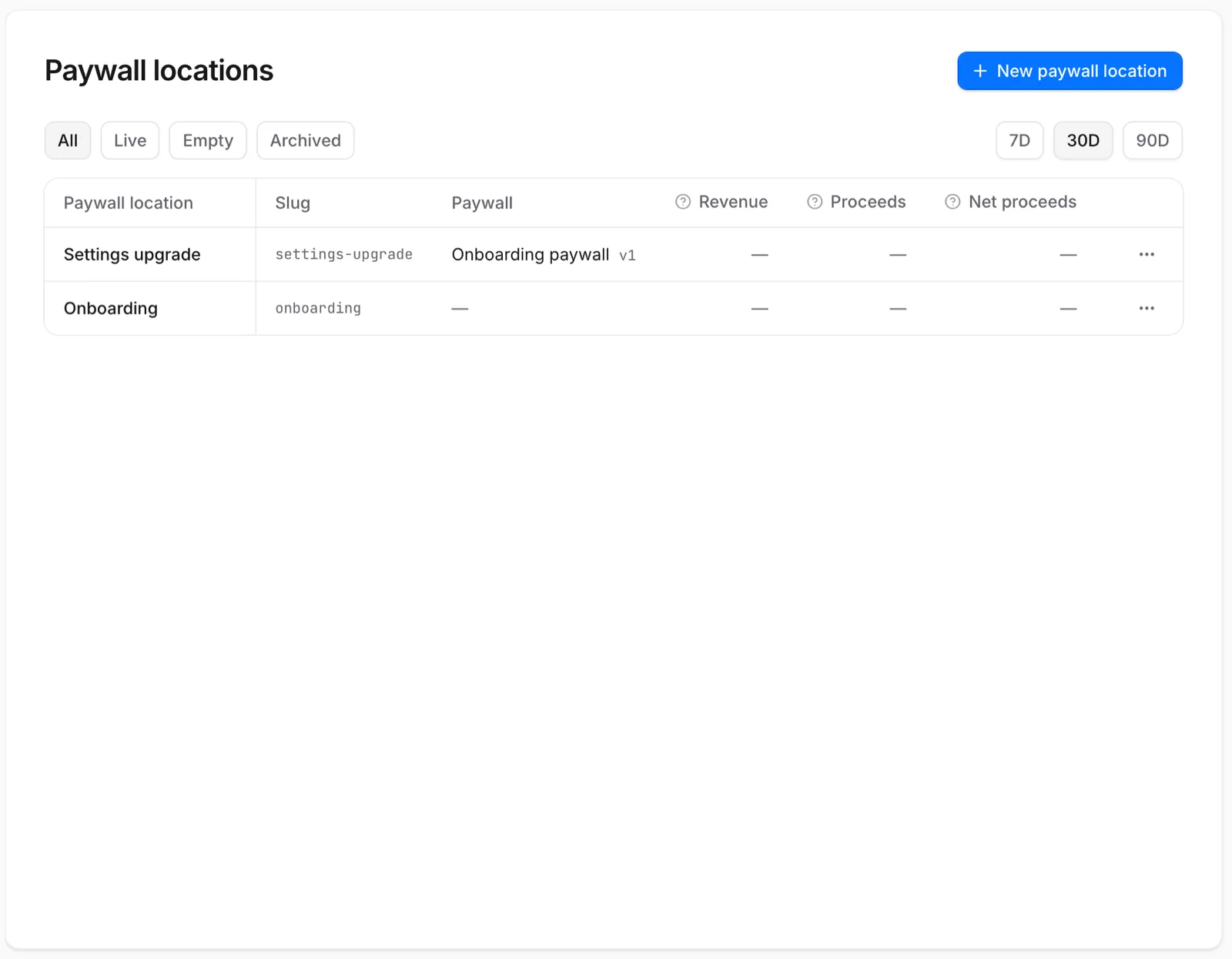 Each location shows whether a paywall is live there
- Open Paywalls → Paywall locations and click New paywall location.
- Enter a Name of 3–64 characters, such as
Onboarding end. - Check the Location slug, filled in from the name: 3–64 lowercase letters, digits,
-and_. - Optionally add a Description of where it appears in the app, up to 255 characters.
- Click Create location. The location appears in the list as Empty until you place a paywall there.
The slug can't change later, because your app's code uses it. Name it after the place in the app, not after the paywall it shows today.
To change the name or description, choose Edit details in the location's menu.
Show a paywall at a location
Assigning a paywall to a location is a placement. A location shows at most one paywall at a time, and the paywall needs a live build: build and deploy it first.
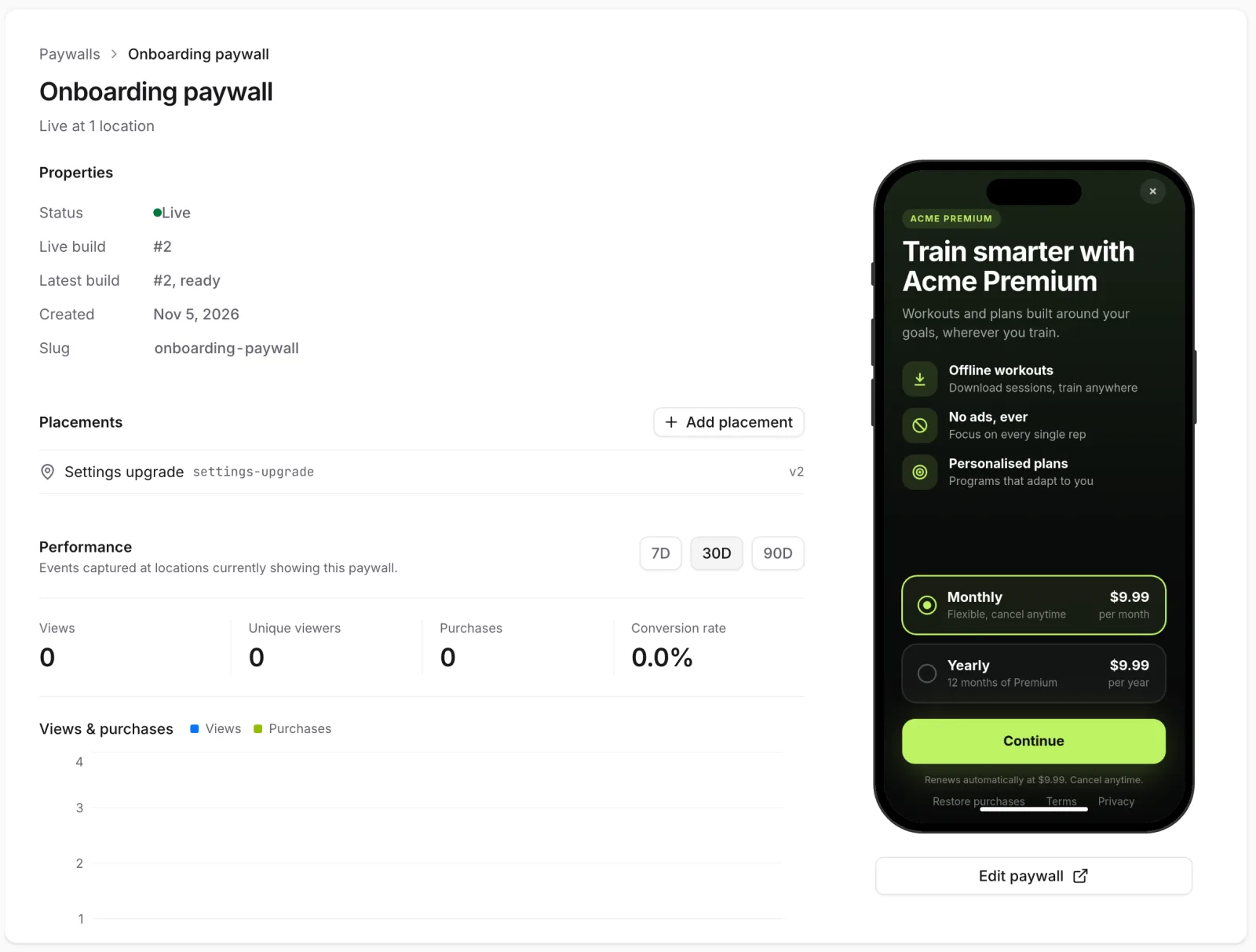 A paywall's page lists its live build and its locations
- From the location: click Place a paywall and pick the paywall.
- From the paywall's page: click Place at a paywall location (or Add placement) and pick the location. Each one is marked Empty, Currently showing another paywall, or Already showing this paywall.
Picking a paywall places it at once, and the location turns Live.
A placement follows the paywall: when you deploy a new build, every location that shows it switches to the new build.
Change or end a placement
- Change paywall, on the location's page or in its menu, replaces what the location shows. The app keeps asking for the same location and gets the new paywall.
- End placement, in the location's menu, stops showing anything there at once, without asking to confirm. The app then shows its own fallback screen.
At a location running an A/B test, either one stops the test at that location.
Changes reach most people within about an hour. See What running apps see.
Before you end a placement or archive a location, check with your developers that the app has a fallback screen for it.
Try a paywall in test first
A location can show a different paywall to builds of your app that use a test key, so you can check a new paywall where it will really appear before any customer sees it. The location's page has two tabs:
- Production is what everyone sees.
- Test is what apps using a test key see. Until you change it, test follows production: they see the same paywall, or the same A/B test.
To try a paywall:
- Open the Test tab and click Show a different paywall, then pick it. It needs a live build, like any placement. Production doesn't change.
- Open the location in a build of your app that uses a test key.
- When it's right, click Apply to production and confirm. Everyone now sees that paywall, and test follows production again.
Reset drops test's paywall without touching production, so test shows what production does again. While test has a paywall of its own, Change paywall on the Test tab replaces it.
In the list of locations, Test differs marks a location that shows test keys something else, and a paywall's page marks such a location Test only.
Apply to production isn't available while an A/B test runs at the location in production. Conclude the test first.
Pin a person to a paywall
A pinned person sees one paywall at a location whatever the location shows everyone else. Use it to check a paywall yourself, or to fix a customer to one.
- On the location's page, find Pinned people and click Pin a person.
- Choose how the person is named under Identity (their app user ID, person ID or email) and enter it under Value.
- Pick the Paywall, add a note if you like, and click Pin person.
- A pin made on the Production tab applies everywhere, including apps using a test key. A pin made on the Test tab applies only to apps using a test key.
- While an A/B test runs at the location, a pinned person still sees their paywall and isn't counted in the test.
- A purchase they make counts for the paywall they were pinned to.
- A pin shows only while the location shows something. An empty location stays empty for everyone.
- The paywall needs a live build. Remove a pin with the bin beside it.
Show another paywall to some people
A rule shows a different paywall to the people it matches, such as everyone on iOS, in Germany, or on a plan your app recorded.
- On the location's page, find Other paywalls for some people and click Add rule.
- Set the conditions, the same way as in a feature flag's rule: what to read (Country, Platform, App version, OS version, Locale or a Trait), how to compare it, and the values. A person has to match all of a rule's conditions.
- Under They see, pick the paywall. It needs a live build.
- Click Save rules.
- The first rule a person matches decides, so the order matters. Move a rule with its arrows.
- Pinned people come before rules, and rules come before what everyone else sees.
- A person a rule matches isn't counted in an A/B test running at the location.
- Rules made on the Production tab apply everywhere. Rules made on the Test tab apply only to apps using a test key, and are read first there.
- Rules take effect only while the location shows something.
Archive a location
Archive a location your app no longer uses: choose Archive in its menu and confirm with Archive paywall location. It stops showing anything, and its placement history is kept. Archiving can't be undone, and the slug stays taken. To use the place again, create a new location with a new slug and give the slug to your developers.
| Status | Meaning |
|---|---|
| Live | Shows a paywall. |
| Empty | Shows no paywall of its own. Unless it runs an A/B test, the app shows its fallback. |
| Archived | Retired; shows nothing for good. |
A location running an A/B test reads Empty, though apps get the test's paywalls there; the Live tab still lists it.
Stats
On Voidhash Cloud, the locations list shows each location's Views, Unique viewers, Purchases and Conversion over the range you pick, Last 30 days at first. Revenue, Proceeds, Net proceeds, Trials and Refunds show "—" for now, because revenue isn't yet attributed to a location. Each location's page charts views and purchases over a range of its own. Self-hosted Studio doesn't collect these stats.
Use the slug in your app
Give your developers the location slug. They add it to the app once, and from then on everything about that place is decided in Studio. For developers: Swift, Kotlin and React Native paywall setup.
Who sees what
A location reads these in order and stops at the first that applies to a person:
- A pin for that person.
- A rule they match.
- An A/B test running there, which splits everyone else at random.
- The paywall the location shows.
Apps using a test key read the Test tab's pins, rules and paywall first.
If something's off
- Placing fails, saying the paywall has no active released version: it has no live build yet. Deploy it first.
- Placing fails, saying you're not allowed, or ends in "Failed to end placement": changing placements needs an admin or the owner.
- The app shows its fallback: the location is Empty with no A/B test running, the app asks for a different slug, or the change hasn't reached the device yet. See Troubleshooting.
Next steps
Still stuck? Check Troubleshooting, ask us on Discord, or email support@voidhash.com on a paid plan.
Something wrong or missing on this page? Tell us by email or on Discord.